
You are working on a brochure, a technical diagram, or an infographic in InDesign, and you want to direct the reader’s gaze towards a specific element. The arrow is the most straightforward visual tool to achieve this. In InDesign, there isn’t a dedicated “arrow” button: the arrow is created from a line to which a pointed end is added. Once you understand this assembly logic, it opens up much broader customization possibilities than simple clipart.
InDesign Arrow: a vector object, not just a decoration
Before you touch the Line tool, it’s worth understanding what an arrow really is in InDesign. The software treats each line as a modifiable vector path at any time. The arrowhead is just a stroke attribute applied to this path.
In practical terms, this means that your arrow remains editable after its creation. You can change its color, thickness, style, or the shape of its tip without starting from scratch. This functionality differs from a typical office software where the arrow is often a fixed block.
For those producing brochure templates or multilingual documents, this vector approach allows you to create an arrow in InDesign that adapts to different export formats (PDF, EPUB, print) without loss of quality. The arrow behaves like any other native graphic element of the software.

Line Tool and Stroke Panel: the two commands to know
All the mechanics rely on two elements of the interface. Mastering them is enough to produce the majority of the arrows you will need.
Draw the base line
Select the Line tool from the left sidebar (the keyboard shortcut is the (backslash) key on both Windows and Mac). Click on your page, hold down the click, and then drag to define the length and direction of the line.
Do you need a perfectly horizontal or vertical line? Hold down the Shift key while drawing. InDesign then constrains the angle in increments of 45 degrees, ensuring a clean alignment effortlessly.
Add the arrowhead via the Stroke panel
The line alone does not yet have a tip. To assign one, open the Stroke panel (Window menu > Stroke, or Ctrl/Cmd + F10). At the bottom of this panel, two dropdown menus appear:
- Start corresponds to the end where you started your path (first click)
- End corresponds to the end where you released the click
- Each menu offers about ten shapes: classic triangular tip, circle, diamond, notched arrow, bar
Choose the desired shape from the “End” menu to get a standard arrow. If you want a two-way arrow, also apply a shape to the “Start” menu.
Customize the thickness and style of an InDesign arrow
An arrow that is too thin goes unnoticed. An arrow that is too thick overwhelms the rest of the layout. Adjustments are always made in the Stroke panel.
The “Thickness” field (expressed in points) controls the width of the line and, proportionally, the size of the tip. Start with a modest value, then gradually increase until you achieve the desired look.
The panel also offers a “Type” menu that allows you to switch from a solid line to a dashed, dotted, or mixed line. A dashed line ending with an arrowhead works well to indicate a path or a flow of steps in an infographic.
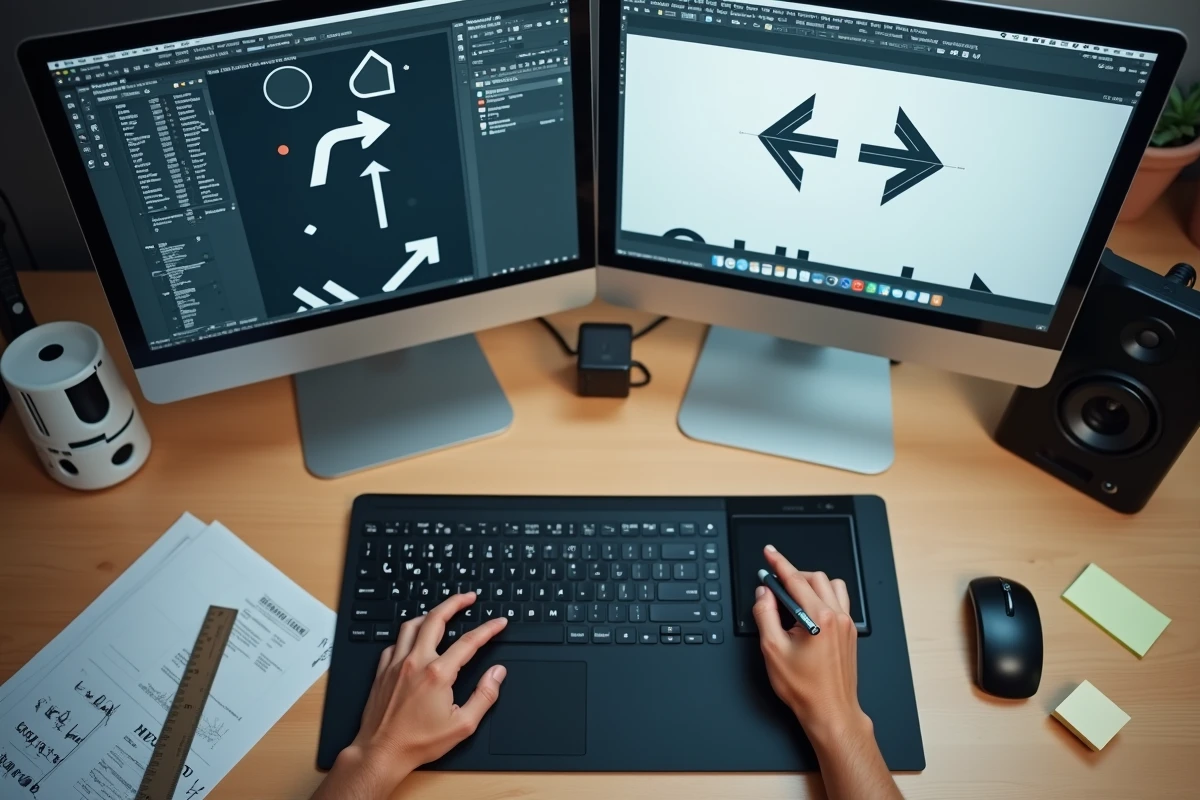
Color and transparency
The stroke color is changed from the swatches (Swatches panel or double-click on the stroke color in the toolbar). You can also adjust the opacity via the Effects panel to achieve a semi-transparent arrow that does not obscure the background content.
Curved arrows with the Pen tool in InDesign
Competitors focus almost exclusively on straight lines. However, layout situations often require curved arrows, for example, to connect two offset text blocks or to illustrate a circuit.
The Pen tool (shortcut P) allows you to draw Bézier curves. Click once to place an anchor point, then click at a second location while holding down the button and dragging: you create a curve. Once the path is complete, apply exactly the same stroke settings as for a straight line: arrowhead, thickness, color.
The visual difference is notable. A curved arrow guides the eye more smoothly than a straight arrow, especially in dense layouts where there are many graphic elements.
Adjust the curve afterwards
Select the Direct Selection tool (A key), then click on an anchor point of your curve. Direction handles appear. Move them to modify the amplitude and orientation of the curve without having to redraw everything.
Transform an arrow into a reusable object
If your graphic charter requires a recurring arrow style, recreating this style manually for each document is a waste of time. There are two solutions in InDesign.
- Object Styles: save all attributes (thickness, color, tip type) in an object style. One click is then enough to apply this style to any new line
- CC Libraries: drag your finalized arrow into a Creative Cloud library. It becomes accessible from any InDesign, Illustrator, or even Photoshop document
- Snippets: export the arrow as a .idms file to share it with a colleague who does not have access to your CC library
This approach transforms the arrow into a standardized graphic component for an entire team, reducing rendering discrepancies between documents produced by multiple people.
The key point to remember: in InDesign, the arrow is never an accessory element stuck on at the last minute. It is a native vector path, adjustable via the Stroke panel, convertible into a curve using the Pen tool, and storable for immediate reuse. Mastering these few settings is enough to cover almost all needs, from a simple caption reference to a complete flowchart.